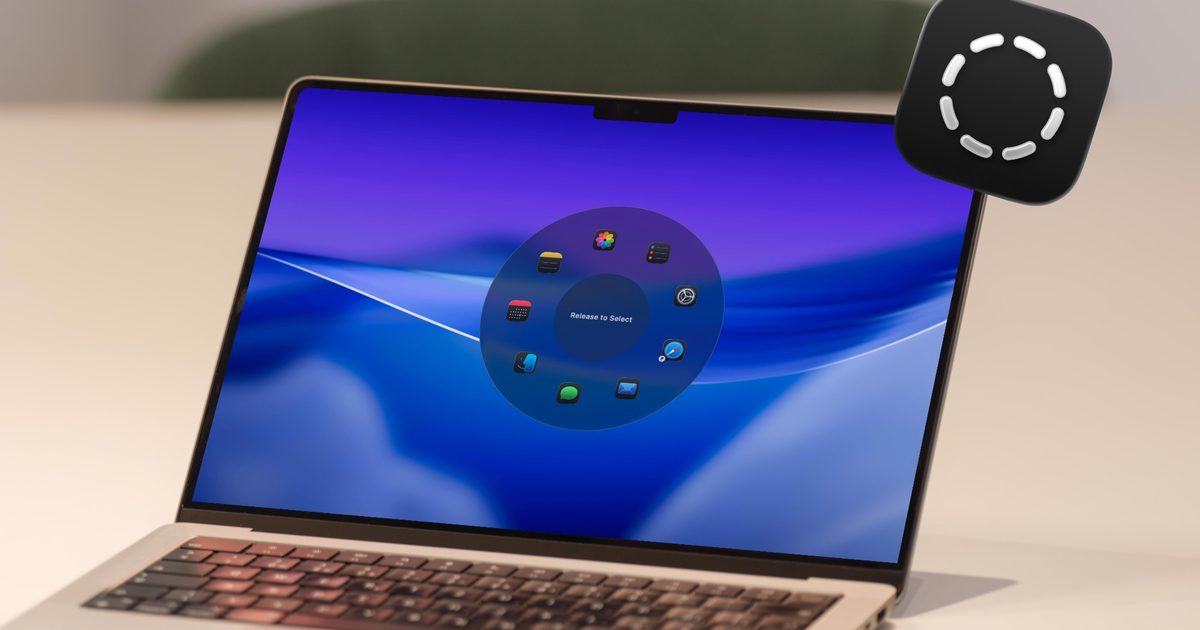
I’ve been testing Radial for the past week, and it’s already become one of those apps I don’t know how to live without. It’s a radial menu for macOS that puts your shortcuts, scripts, and automation where your cursor is, so you don’t have to hunt through menus to find what you need.
The app recently received its 5.0 update, adding AI actions powered by Claude, window layouts, transitions, a redesigned settings interface, a new Atmosphere background effect, and a squircle menu mode. I got to try more of these, and here’s what I found.
How does Radial fit into my workflow
Before I get into the new features, let’s first understand the problems this app is trying to solve. We all have several repetitive tasks that we do on our Macs. Whether it’s renaming documents, compressing and converting files, opening the same set of apps every morning, writing the same answers, or running the same terminal commands, our day is filled with repetitive tasks. Radial makes it easy to do these repetitive tasks, saving you both time and headache.
From the menu, I can launch applications, open files, folders, and URLs, enter text captions, simulate keyboard shortcuts, manage application windows, and perform system actions, all without leaving what I’m doing. I can invoke an app with a simple movement of my mouse cursor and all my shortcuts appear at my fingertips.
The app also provides app-specific shortcuts. For example, if I invoke the Radial menu with the Finder selected, it gives me options to copy the file path, create a new text file, rename the selected file group, and more. Similarly, when I open my CleanShot X menu, it allows me to take a screenshot, record the screen, extract text, and more.
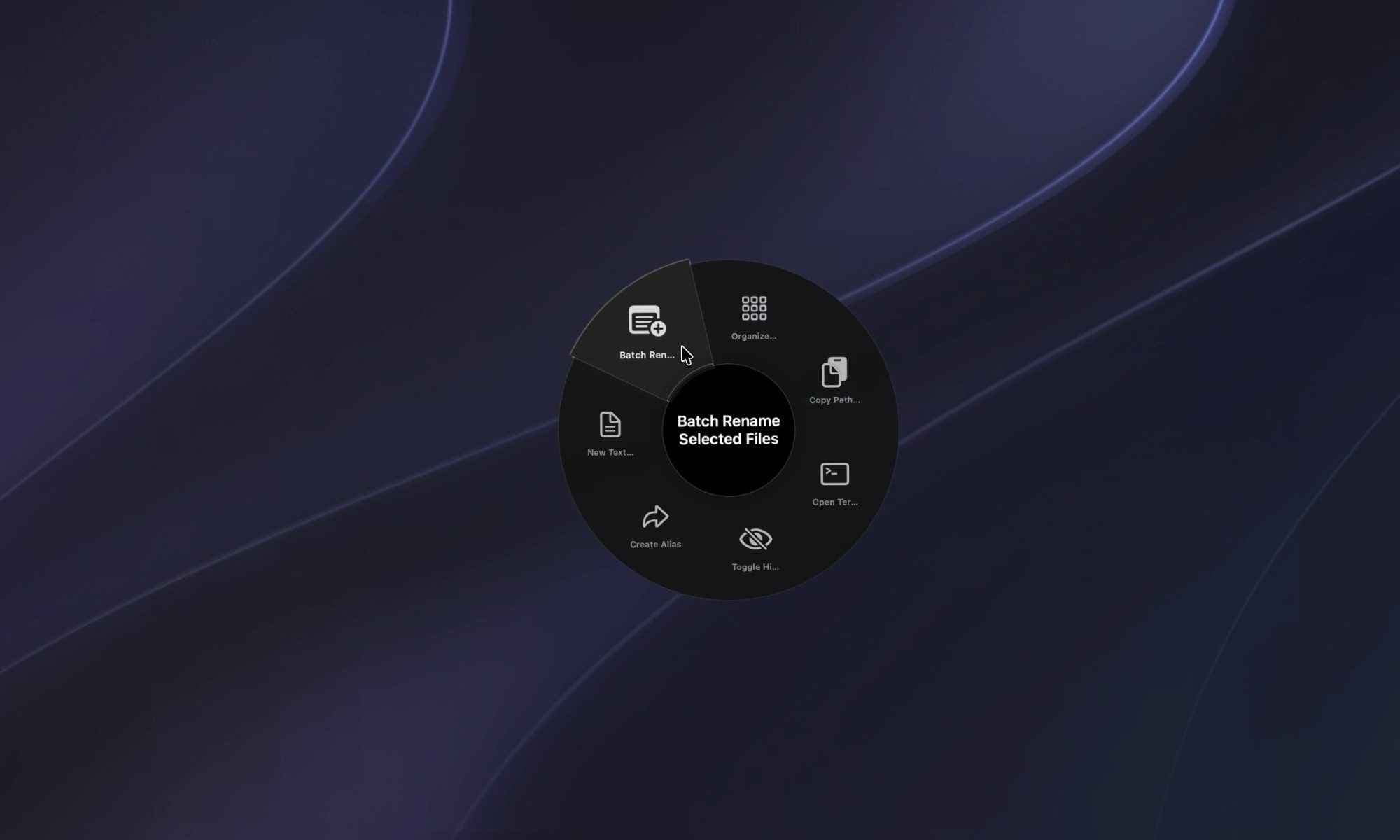
This means I no longer need to learn all the keyboard shortcuts for different applications. I just requested the Radial menu, and it gives me quick access to all the actions I need for the app.
There is a community section that you can browse to find and install shortcuts that other Radial users have already created. This makes it easier to get started with the app, as you don’t have to carefully create all the shortcuts you use. If necessary, someone may have already created a shortcut for it.
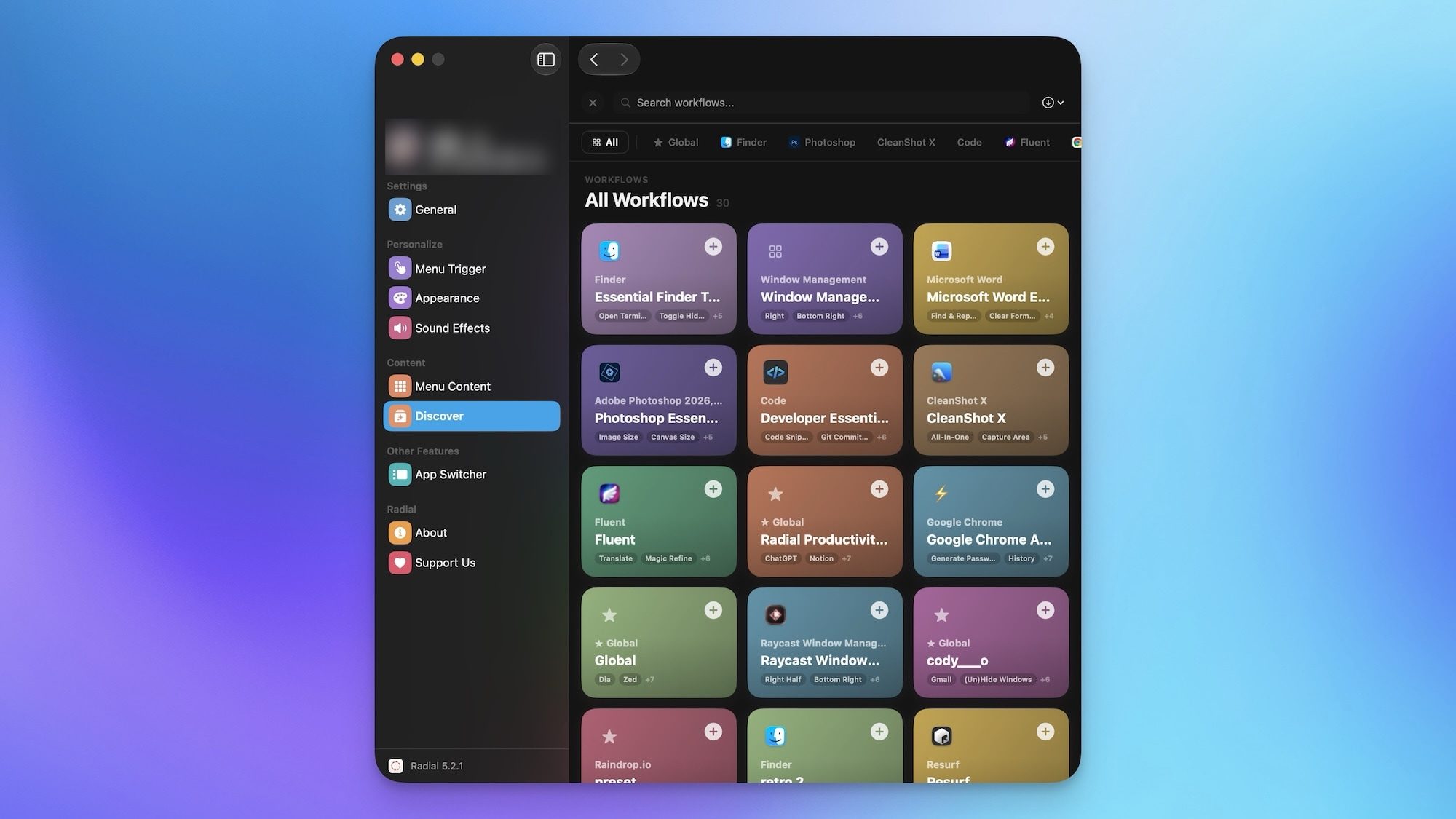
Using Radial to create shortcuts is great, but putting them together is where the app really comes in handy. You can combine multiple shortcuts to perform one-touch processes, and once you get the hang of it, it’s honestly hard to go back.
Some new tricks up its sleeve
Like I said, the app just got its version 5.0, and it added a few useful features. The AI actions are a feature I keep coming back to. Enabled by Claude, they allow me to select any text on my Mac and have Radial shorten, rewrite, or convert it on the spot, without switching applications. It sounds small, but it has brought me peace of mind most of the time.
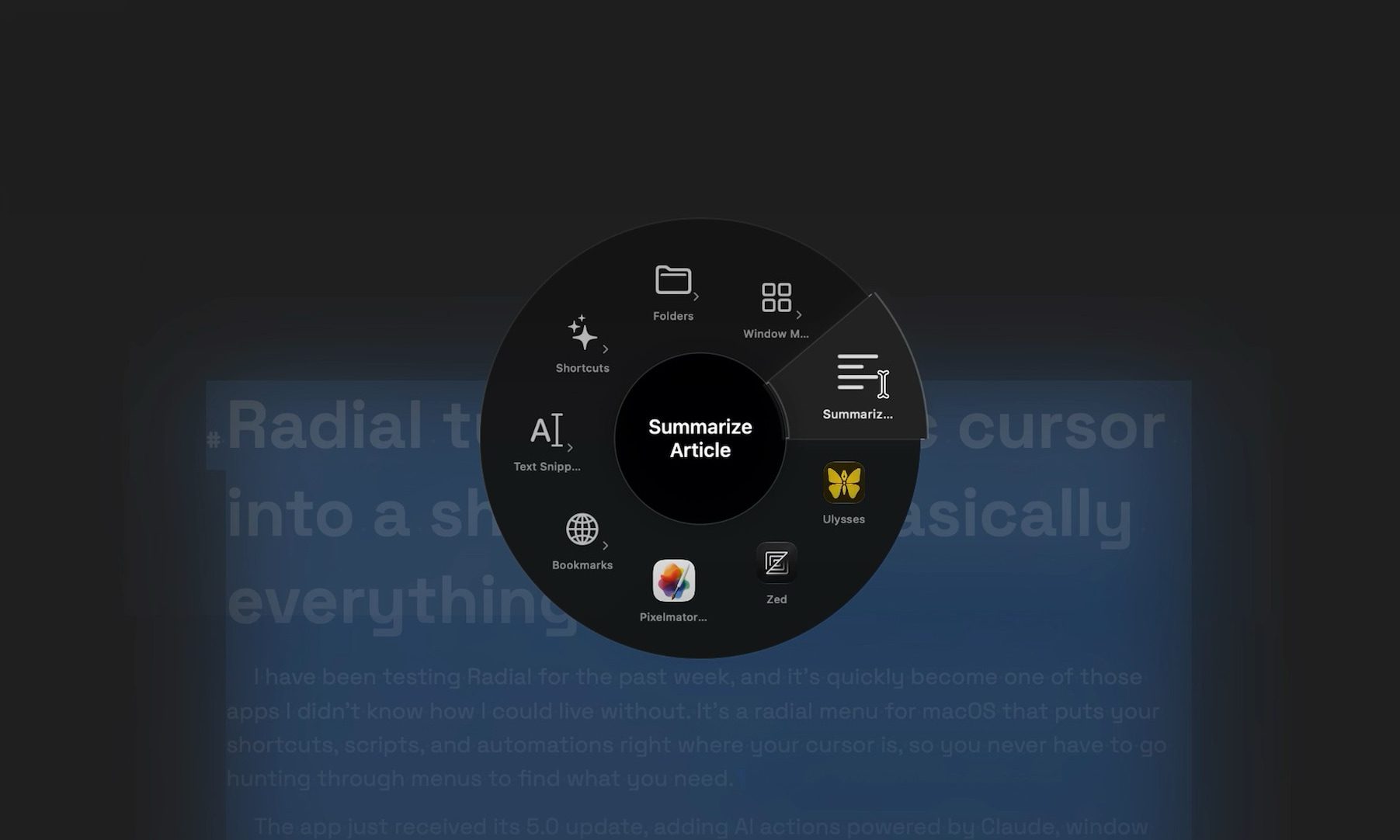
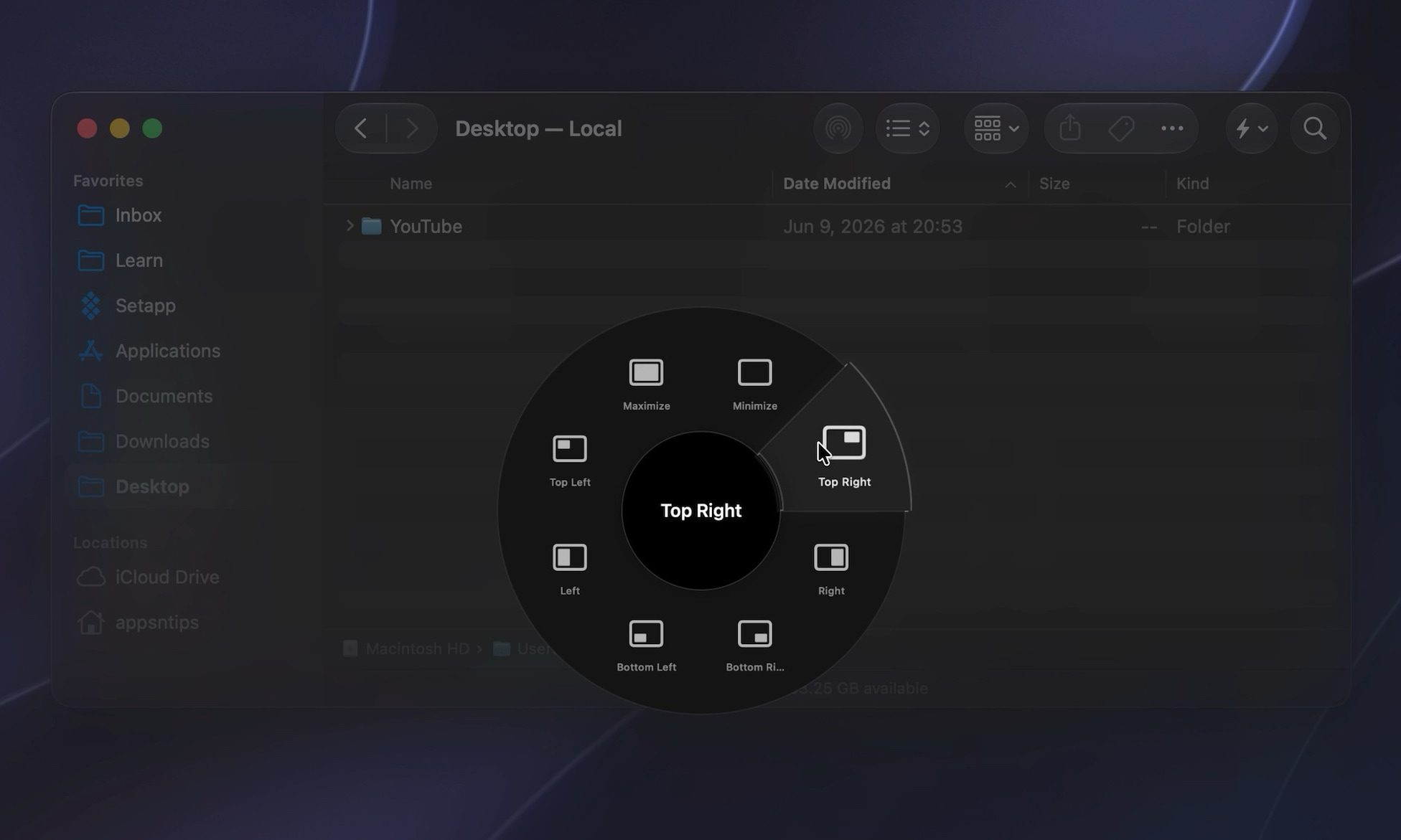
Window properties are one that I ended up using more than expected. Instead of manually setting up my apps every morning, I saved the layout once and now I start setting up my workspace with one touch. And I haven’t even scratched the surface of what I can do with the app. It also allows users to run macros, Apple scripts, shortcuts, and automate workflows.
Radial has quietly become a part of how I use my Mac every day. It’s not a flashy app, but it saves me time in a dozen small ways that add up quickly. If you’ve been looking for a quick way to get things done, you better try it yourself.